
What does the SUM function do?
Before learning how to use the SUM function in Excel let’s have a look at what it does. The SUM function in Excel is used to add numbers, cell values, or ranges quickly. It is one of the most commonly used functions for performing calculations in spreadsheets.
Why is the SUM function useful?
The SUM function is valuable because it saves time and simplifies calculations. The most basic way to add numbers in Excel is by manually entering a formula like =Cell1 + Cell2 in the destination cell. While this method works for small calculations, it becomes tedious and inefficient when dealing with large datasets. The SUM function eliminates this hassle by allowing you to sum entire ranges with a single formula. To summarize, the SUM function:
- Quickly calculates totals for financial records, inventory, and other numerical datasets.
- Works dynamically—if values in the referenced cells change, the sum updates automatically.
- Simplifies formulas—instead of writing
=A1+A2+A3, you can simply use=SUM(A1:A3).
Syntax:
=SUM(number1, [number2], …)- number1, number2, …: These can be numbers, cell references, or ranges.
- You can include multiple numbers or ranges in a single SUM function.
How to use the SUM function in Excel
Examples of Using SUM in Excel
1. Summing a Range of Numbers
If you have numbers in A1 to A5, you can sum them using:
=SUM(A1:A5)This will add all values in the range A1 to A5.
2. Summing Individual Cells
=SUM(A1, A3, A5)This adds only the values in cells A1, A3, and A5.
3. Summing Multiple Ranges
=SUM(A1:A5, C1:C5)This adds all values from both A1:A5 and C1:C5.
4. Using SUM with Other Functions
You can use SUM inside other functions:
=SUM(A1:A5) / COUNT(A1:A5)This calculates the average by summing the values and dividing by the count.
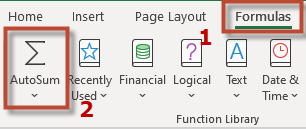
5. Using AutoSum
Instead of typing manually, Excel provides an AutoSum feature:
- Select the cell where you want the sum to appear.
- Click AutoSum (∑) in the toolbar under the Formulas tab.
- Excel will automatically select a range (you can adjust it if needed).
- Press Enter, and the sum will be calculated.
Example Dataset to Practice With
| A (Item) | B (Quantity) | C (Price) | D (Total Cost) |
|---|---|---|---|
| Apples | 10 | 1.50 | =B2*C2 |
| Bananas | 5 | 0.80 | =B3*C3 |
| Oranges | 8 | 1.20 | =B4*C4 |
| Grapes | 3 | 2.00 | =B5*C5 |
| Total | =SUM(D2:D5) |
Try using the SUM function in column D to calculate the total cost of all items.
See also our products and tools
Gumroad Shop: