
What does transposing data mean?
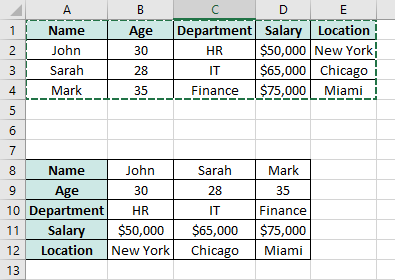
Before looking at how to transpose data in Excel let’s define what transposing data means. Transposing data is the action of switching rows into columns and columns into rows. it can be useful when reorganizing data layouts, after importing data from external sources or when reformatting data for chart preparation.
How to Transpose Data in Excel
There are multiple ways to transpose data in Excel:
Method 1: Using Paste Special (Static Transpose)
This method transposes data but does not update when the original data changes.
Steps:
- Select the Data
- Highlight the range of data you want to transpose.
- Copy the Data
- Press
Ctrl + C(or right-click → Copy).
- Press
- Choose the Destination
- Click on a blank cell where you want the transposed data.
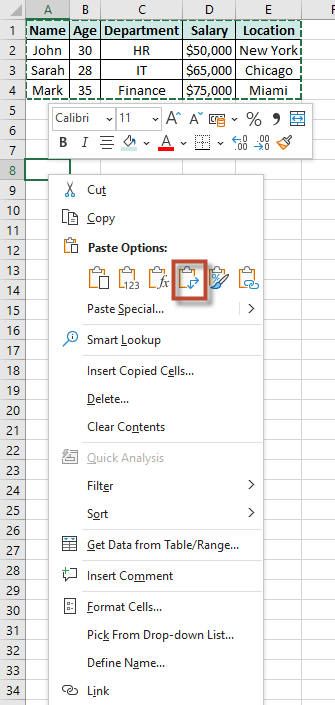
- Use Paste Special:
- Right-click → Choose Paste Special → Click Transpose.
- OR use the shortcut:
Ctrl + Alt + V, then pressEfor Transpose, and click OK.
Method 2: Using the TRANSPOSE Function (Dynamic Transpose)
This method keeps the transposed data linked to the original data.
Steps:
- Select the Output Range
- Highlight the empty range where the transposed data should appear.
- Example: If your original data is 4 rows × 5 columns, select a 5 rows × 4 columns area.
- Enter the Formula:
=TRANSPOSE(A1:E4)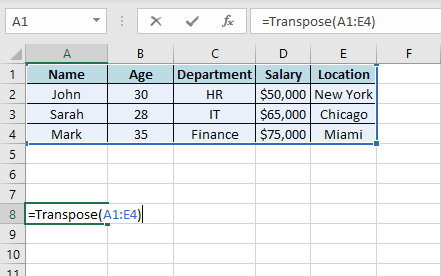
- Press
Ctrl + Shift + Enter- If using Excel 2019 or later, press
Enter(it’s a dynamic array). - If using an older version, press Ctrl + Shift + Enter (it becomes an array formula).
- If using Excel 2019 or later, press
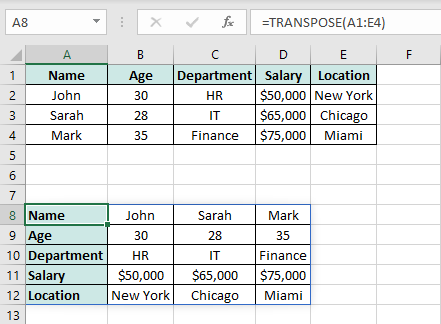
- Data Updates Automatically
- Any changes in the original table will reflect in the transposed table.
Method 3: Using Power Query (For Large Data Sets)
If you have a large dataset, Power Query provides an efficient way to transpose.
Steps:
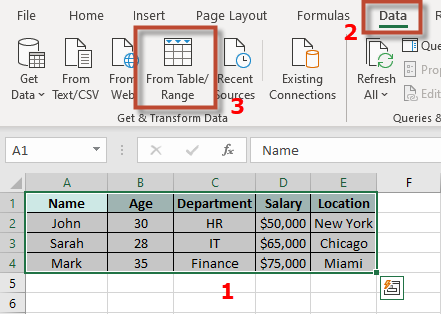
- Select the Data → Go to “Data” Tab → Click “Get & Transform Data” → Click “From Table/Range”
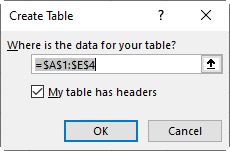
- If your data is not formatted as a table, Excel will ask you to convert it.
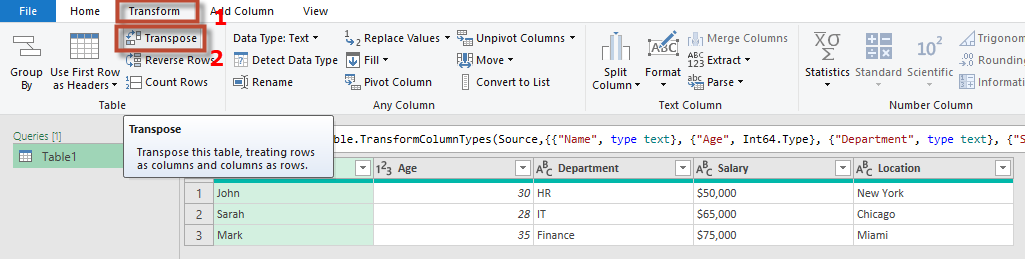
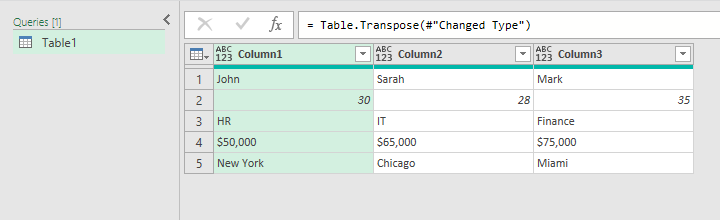
- In Power Query, Click “Transform” → Click “Transpose”
- Click “Close & Load”
- The transposed data will appear in a new worksheet.
See also our products and tools
Gumroad Shop: