
Excel documents can sometimes be lost due to various reasons, such as a computer crash, power outage, or accidentally closing without saving. In some cases, however, it is still possible to recover and restore the documents.
If you wish to know how to recover unsaved Excel files you may still be able to do it using one of the following methods:
Recover Unsaved Workbooks (Excel AutoRecover)
If AutoRecover is enabled, Excel may have saved a temporary version of your file.
Steps to Recover:
- Open Excel.
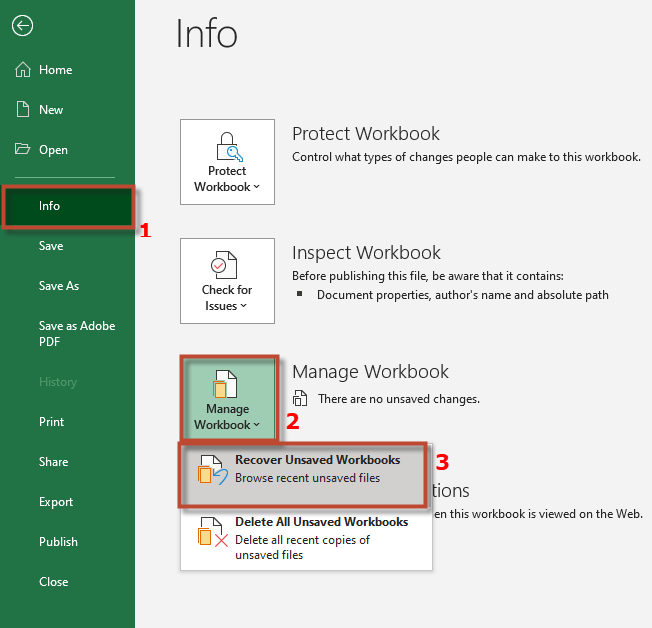
- Go to File → Info.
- Click on Manage Workbook (or Manage Versions).
- Select Recover Unsaved Workbooks.
- Look for your file in the list, open it, and save it immediately.
Check the AutoRecover Folder Manually
Excel saves unsaved files in a hidden folder. You can access it manually by following the steps below:
Steps:
- Open File Explorer.
- Copy and paste this path into the address
C:\Users\YourUsername\AppData\Local\Microsoft\Office\UnsavedFiles- Look for your file with a
.xlsbor.xlsxextension. - Open the file in Excel and save it.
Check Temporary Files
Windows may have saved a temporary version of your file. You can try to recover your document with the following method:
Steps:
- Open File Explorer.
- Go to this folder:
C:\Users\YourUsername\AppData\Local\Temp- Look for a file with a name like
~Excel…or similar. - Try opening it with Excel.
Use “Recover Document” When Restarting Excel
If Excel crashed, it may offer to recover files when you reopen it.
Steps:
- Restart Excel.
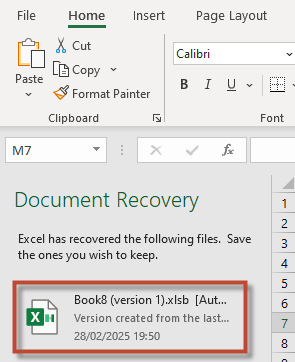
- If a “Document Recovery” pane appears, check for your unsaved file.
- Click on the file to open it and save it immediately.
Check OneDrive or Cloud Backup
If you’re using OneDrive, Google Drive, or another cloud service, check if a previous version of your file was automatically saved.
For OneDrive:
- Open OneDrive.
- Go to the Recycle Bin or check Version History (right-click the file in OneDrive).
Check for File History (Windows Backup)
If File History is enabled, you may be able to restore an older version of the file.
Steps:
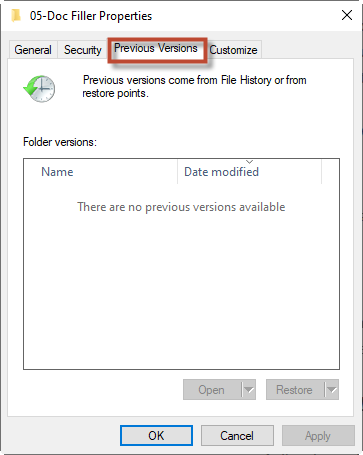
- Right-click the folder where the file was saved.
- Click Restore previous versions.
- Look for the missing file.
If none of these work, unfortunately, the file may be lost.
See also our products and tools
Gumroad Shop: