
What does the “Text-to-Columns” feature do?
When working on datasets in Excel the data is sometimes concatenated in one column. If you want to know how to separate text in Excel then Text-to-Columns is the answer. The Text-to-Columns feature allows the user to split data from one column into multiple columns based on a specific delimiter (e.g., commas, spaces, tabs) or a fixed width. This is useful when dealing with combined data that needs to be separated for better organization and analysis.
To summarize its advantages:
- Separating Data Easily – Splits names, addresses, or other combined data into distinct columns.
- Cleaning Up Imported Data – Helps when working with CSV files or data copied from external sources.
- Extracting Key Information – Separates values such as first and last names, product codes, or numerical data.
- Improving Data Organization – Makes sorting, filtering, and analyzing information more efficient.
How to Use “Text to Columns” in Excel
Select the Column:
- Highlight the column containing the data you want to split.
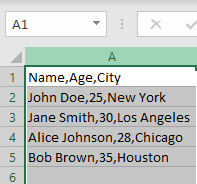
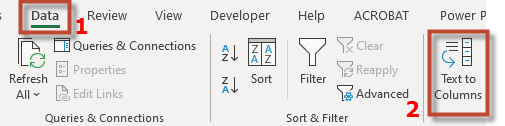
Open Text to Columns:
- Go to the Data tab and click Text to Columns.
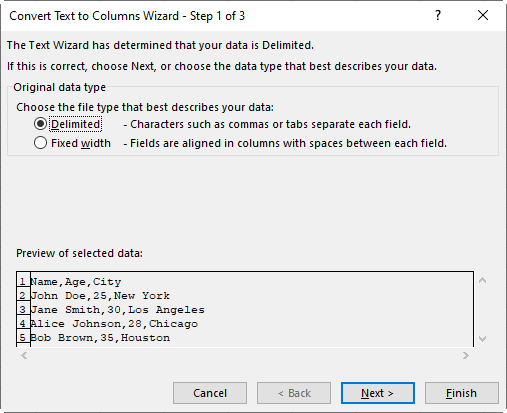
Choose a Method:
- Delimited: Select this if the data is separated by characters like commas, tabs, or spaces.
- Fixed Width: Use this if the data is aligned in consistent spaces and needs to be split accordingly.
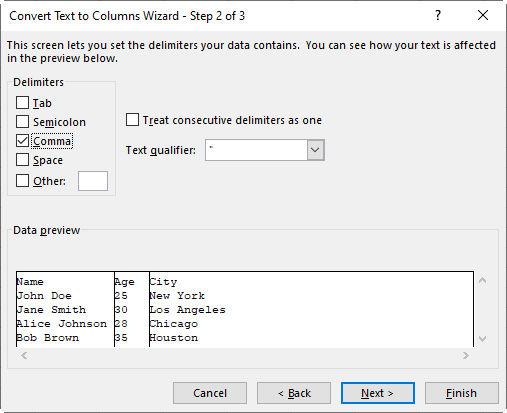
Set the Delimiter or Width:
- Choose the delimiter (comma, space, tab, etc.) or adjust column break lines for fixed width.
Select the Destination:
- Choose where the split data should appear (default is overwriting the original column).
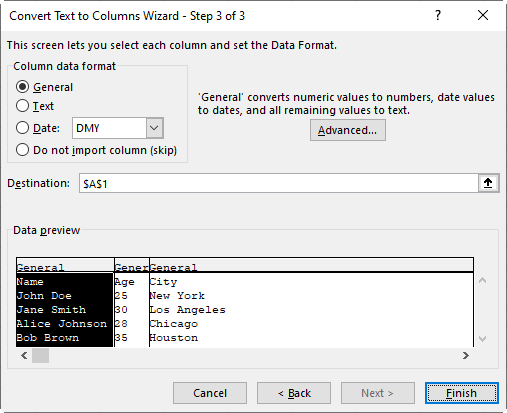
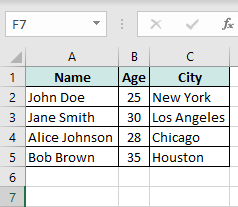
Click Finish:
- The data will now be separated into multiple columns.
See also our products and tools
Gumroad Shop: